
Family registration help
How to Register
Register, read both forms, and sign once.
Start here
4 steps to register
The surf program is free for eligible youth ages 2–25. Add each participating child or young adult in one registration, then complete the forms.
- 1
Choose an event
Open an event and select Register.
- 2
Enter guardian and child information
Enter your contact details, then add each child's details, including an allergies and dietary answer. Enter None when there are none.
- 3
Complete the forms in order
Read both forms, choose the photo and video answer, then sign once.
- 4
Review and submit
Check the information, complete the required confirmations, and submit once.
What you will see
Follow the screens in order
Registration has four stages: Guardian, Children, Forms and Review. These nine images zoom in on individual sections within those stages; they are not nine separate steps.
These images show an example registration with every field left blank. Your event name, date, and location may be different.
Image 1 of 9
Choose an event and select Register
Open the event you want, check the date, time, and region, and select Register.

This is an example. The event name, date, region, and image may be different when you register. Open larger screenshotImage 2 of 9
Enter parent or guardian contact details
On Guardian, create an account, sign in, or continue without one. Enter the adult's name, email, and a 10-digit US phone number, then select Continue.

Enter the parent or guardian contact information in the blank fields. Open larger screenshotImage 3 of 9
Add each child
On Children, enter each child's name, age on the event date (2–25), current swim ability, height, and weight. Add every child before continuing.
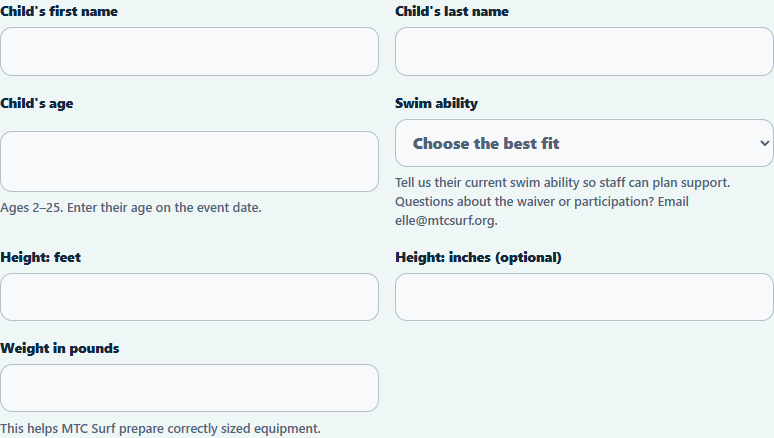
Complete one child card for every child attending the event. Open larger screenshotImage 4 of 9
Add support information
Allergies and dietary restrictions need an answer: enter None if there are none. Additional support and child-context choices are optional; blank additional-support text is saved as None.
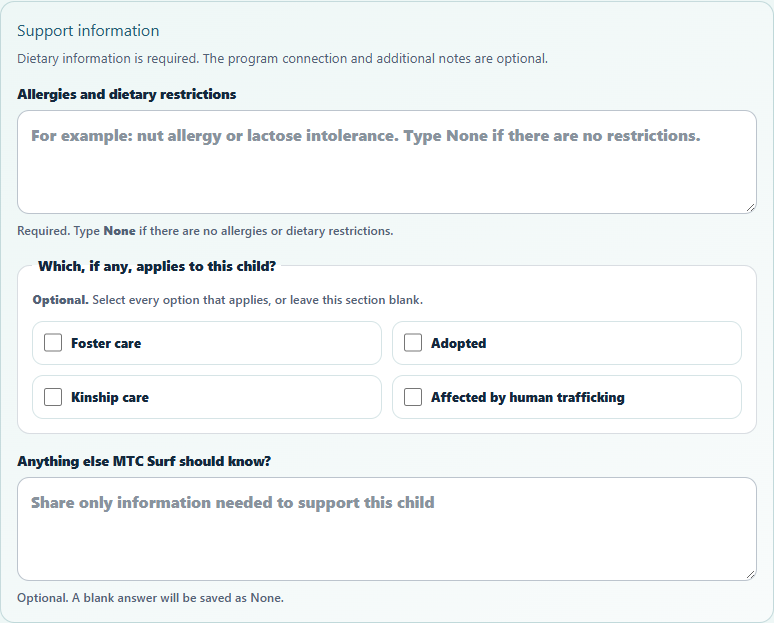
Allergies and dietary restrictions require an answer. The additional-support field and child-context choices are optional. Open larger screenshotImage 5 of 9
Read both liability waiver pages
On Forms, read page 1 and page 2. Do not type or sign on the blank lines printed inside the form.

Both pages are displayed in registration before you sign. Open larger screenshotImage 6 of 9
Read both photo and video release pages
Read page 1 and page 2. You will choose Yes or No after the form previews.

Review both pages before choosing whether to accept or decline. Open larger screenshotImage 7 of 9
Choose Yes or No for photo and video
Choose one answer that applies to everyone listed in this registration. Choosing No does not affect participation and does not require another signature.
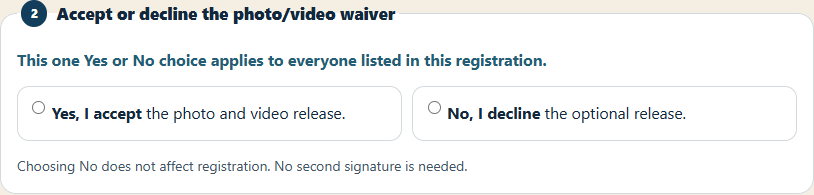
Select one shared photo and video answer for everyone listed. Open larger screenshotImage 8 of 9
Draw or type one signature
Draw with a finger, stylus, trackpad, or mouse, or choose Type signature instead and enter your full name. One signature covers everyone listed in this registration.
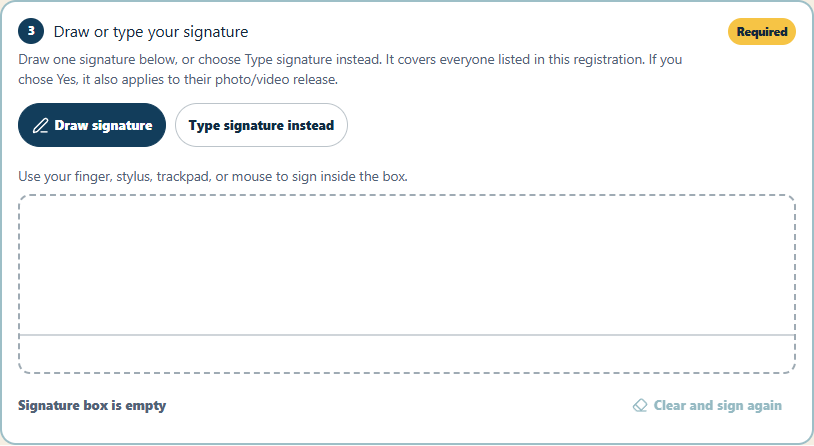
Draw once or use Type signature instead. Do not sign separately for each child. Open larger screenshotImage 9 of 9
Review, confirm, and submit once
On Review, check every child's details and the shared media choice, then confirm all three statements and submit once. Each child receives a separate confirmed or waitlisted result; siblings can have different results.

The three confirmations must be checked before the registration can be submitted. Open larger screenshot
Waiver instructions
Complete these in order
The blank lines inside the PDFs do not need to be filled in.
- 1
Read both forms
Read page 1 and page 2 of the required liability waiver and the optional photo/video release. All four pages are shown in registration.
- 2
Accept or decline photo/video
Your Yes or No answer applies to everyone listed in this registration. Declining does not affect participation.
- 3
Draw or type one signature
Draw your signature or choose Type signature instead and enter your full name. One signature covers everyone listed; the optional photo/video release needs no second signature.
One signature for the whole registration. Do not sign inside either PDF and do not sign once per child.
Enter each participant's current swim ability honestly so staff can plan support. For questions about the waiver or participation, email elle@mtcsurf.org before signing.
Ready to begin?
Choose an event
Open the event, review its details, and select Register. If registration is closed, choose another upcoming event or contact your region below.
After submitting, check each child's confirmed or waitlisted result. For questions about different sibling results, email elle@mtcsurf.org.
Still need help?
Contact your region
Ventura or Santa Barbara: (805) 216-9824 or elle@mtcsurf.org
San Diego: (818) 264-8325 or gaia@mtcsurf.org